The guest’s own view
Make room for order review and an optional thank you.
Taply Restaurant payments
Bring the guest, the check and the payment into one considered checkout. At the counter or by the table, make the last moment part of the service.

Make room for order review and an optional thank you.
Put the checkout at the counter or close to the table.
Keep order context close to your payment workflow.
Your room. Your service.
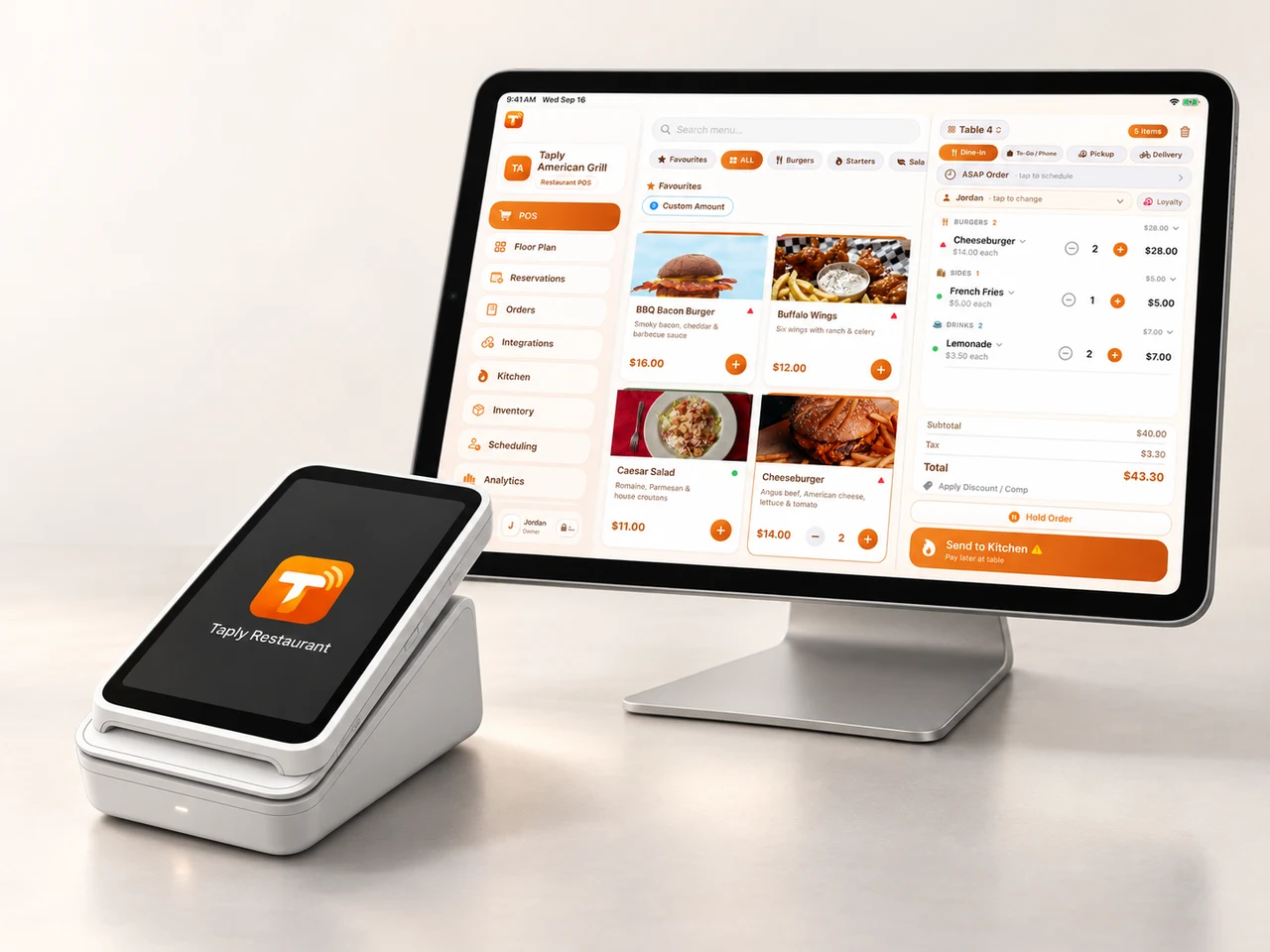
Keep the staff workspace and guest display connected to the same visit. Give the guest room to review the check, choose a tip and use the reader.
The guest’s side of the counter
Follow a sample check through order review, an optional tip and a card tap on a white M2 reader.
This is an interactive illustration with fixed sample amounts. It never creates an order, connects to a reader or takes a payment.
Fictional table 12
A place for every device
The iPad, guest display and reader have different jobs. Put them together with the right placement and connection for your restaurant.
A considered payment setup
Confirm compatible equipment, merchant activation and payment methods.
Review the software plan, equipment and processing fees together.
Walk the team through the guest flow and an unclear payment result.
Taply Restaurant
Walk through your restaurant, your team and the setup that fits.
Book a personal walkthroughTaply brings order review, guest tip choices and your configured payment flow into the Restaurant experience. The exact path depends on your app version, plan, devices and enabled processor.
The guest display gives customers their own view of the check and tip selection. Explore the sample on this page, then review the enabled tip settings and actual device layout in your walkthrough.
Review a paired Stripe M2, an eligible smart-reader setup or Tap to Pay on a compatible phone. Confirm the exact reader, connection and merchant requirements before ordering hardware.
Taply Floor supports a handheld service workflow. Tap to Pay depends on the device, operating system, supported region and merchant activation. Review the supported checkout path for your phones and readers.
Software, hardware and payment processing are separate parts of your setup. Review processing fees, equipment, subscription costs and any provider charges together in your quote.
Your enabled payment processor handles card processing and payouts under its terms. Taply is the Restaurant software workspace. Review processor eligibility, settlement timing and supported payment methods for your merchant account.
Have staff verify the existing payment status before attempting to collect again. Review the recovery procedure for the devices and processor in your setup; offline card acceptance is not promised by this page.
No. The example uses a fixed fictional check and local page state. It does not create an order, contact a processor, connect to a reader or charge a card.
Keep exploring