Restaurant POS without hardware lock-in

Restaurant POS, No Hardware Lock-In

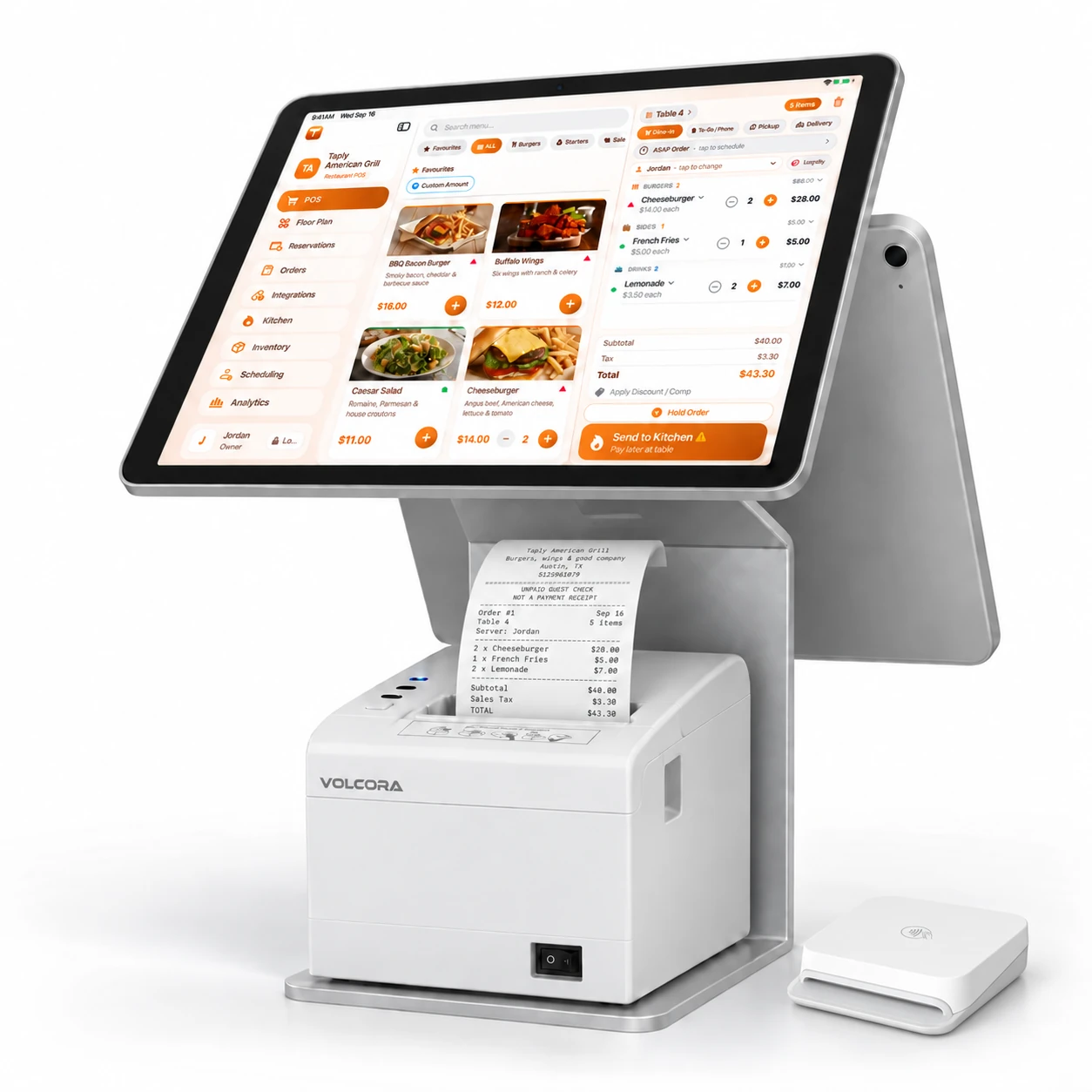
Launch Taply with compatible iPad and iPhone devices you already own. Get POS, Floor, secure KDS, QR ordering, delivery workflows, payments, tax tools, and owner analytics without buying a proprietary hardware stack.

Start in the web Owner Portal to create the restaurant account, configure setup, then install Taply apps after the workspace is ready.

Bring Your Own Devices
No Required Taply Hardware
Offline-First Core

Launch Offer

First 10 restaurants get Enterprise free for 1 year.

Launch partners can run Enterprise-level workflows for a full year while avoiding a forced hardware lease. Use compatible Apple devices, configure the restaurant workspace, and bring staff online at your pace.

Claim Enterprise Offer

Limited to the first 10 qualifying restaurants

Enterprise-level Taply POS free for 1 year

Bring compatible iPad and iPhone devices

0+

Features Built-In

0

Plan Options

$0

Required Taply Hardware

0%

Local-First Core

Everything You Need

One App. Complete Restaurant Control

Start with basic POS workflows, then upgrade for KDS, Floor, staff controls, inventory, scheduling, and advanced analytics.

Offline-First

Local-first POS workflows keep taking orders when internet is slow or unavailable.

To-Go + Pay on Pickup

Capture customer contact, send unpaid phone orders to the kitchen, and collect payment later.

Taply Floor Pairing

Floor iPhones pair with the iPad POS host over local Wi-Fi after manager approval.

Secure Kitchen Display

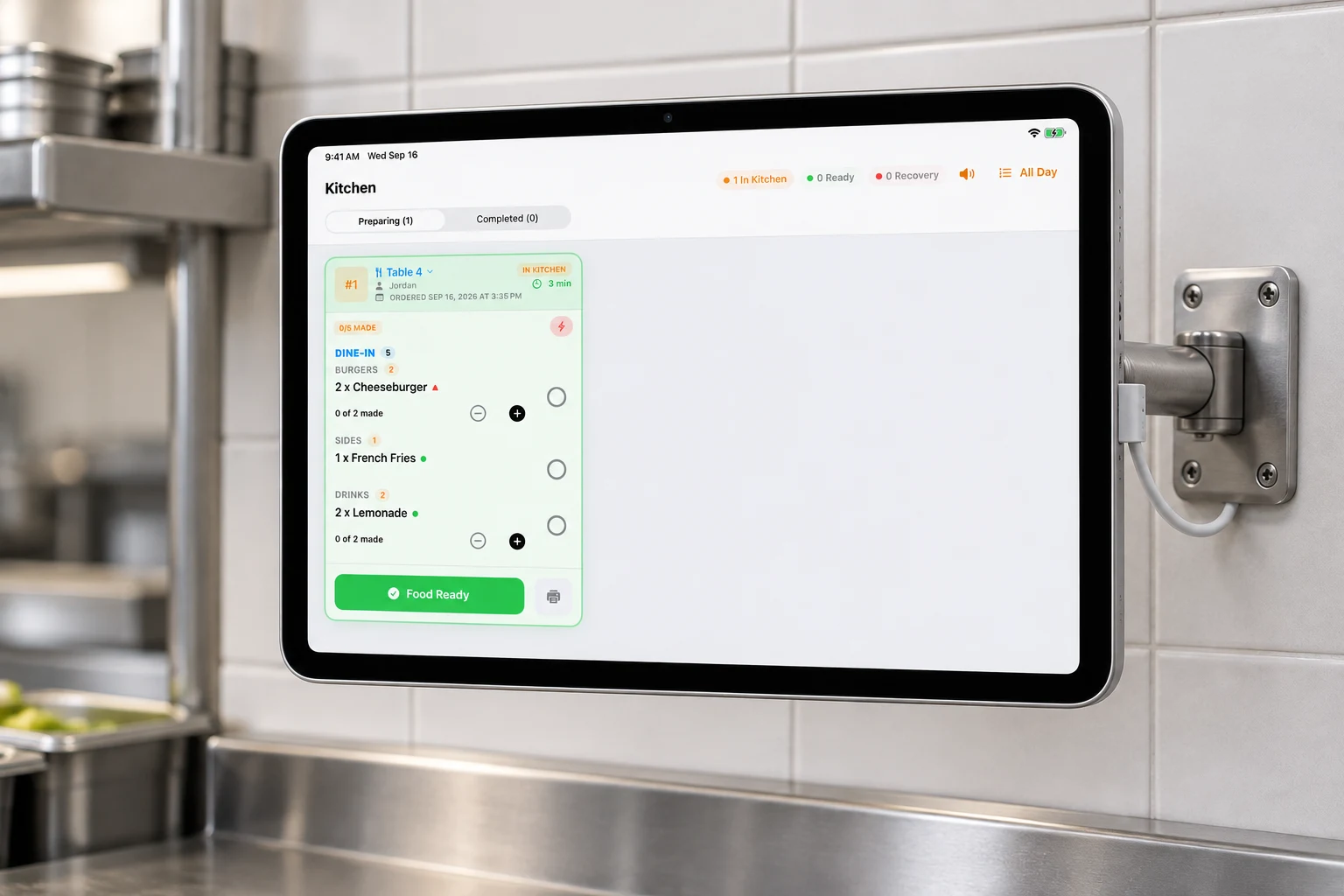
Dedicated KDS mode includes KDS PIN login, Logoff, and manager PIN protection to exit.

Stripe + Square Payments

Use Stripe Terminal, Tap to Pay on iPhone where eligible, and Square where configured.

Restaurant Tax Engine

Configure location and category tax rules for prepared food, soda, beer, alcohol, and reports.

Admin Controls

Staff roles, PIN permissions, manager approvals, audit trail, safe sign out, and device erase.

Owner Dashboard

Owners can review orders, menus, staff, settings, subscriptions, and analytics from the web portal.

POS Layout Sync

Reorder POS categories and order-type chips, then sync layouts across restaurant devices.

Delivery Workflows

Delivery and QR. One Workflow.

Ultra supports delivery and QR workflows for restaurants that need off-premise and tableside ordering operations. Provider integrations are marked Live only after setup and validation.

Dd
DoorDash
Verify
Ue
Uber Eats
Verify
Ch
Chowly
Verify
Cm
Checkmate
Verify
Dd
DoorDash
Verify
Ue
Uber Eats
Verify
Ch
Chowly
Verify
Cm
Checkmate
Verify
Live Orders
Workflow View
Do
DoorDashProvider test

Biryani x1, Samosa x4

$28.96
Ub
Uber EatsProvider test

Butter Chicken x2, Naan x3

$42.50
Ch
ChowlyVerification

Tikka Masala x1, Lassi x2

$31.47
Ch
CheckmateVerification

Dosa x2, Chutney x2

$24.20
In
In-Store8 min ago

Table 4 — Thali x3

$54.00

47

Today's Orders

$1,840

Delivery Rev

14 min

Avg Prep Time

One Screen. Every Order.

Taply is designed for provider-aware delivery and QR workflows. DoorDash, Uber Eats, Chowly, and Checkmate are presented with setup and verification states, so restaurants can distinguish connected providers from integrations still waiting on provider approval.

Manage delivery and QR workflows from the restaurant POS
Review incoming orders before they reach the kitchen
Keep kitchen workflows organized across dine-in and off-premise orders
Coordinate menu availability across supported ordering flows
Track order status from acceptance through completion
Show Live only after provider validation is complete
Discuss delivery workflows
How It Works

From Onboarding to Restaurant Service

Taply keeps merchant onboarding in the Owner Portal, then gives staff a focused iPad and iPhone workflow for daily restaurant service.

01

Create the Restaurant Workspace

Owners start in the web Owner Portal, create the restaurant account and workspace, then sign in to the iPad POS with the same Taply merchant credentials.

1
2
3
02

Configure the iPad POS

Set tables, menu, staff PINs, tax settings, payment processor, printers, and optional KDS mode from the POS admin area.

Synced
2 Devices
Offline OK
03

Run Service and Review

Take dine-in, to-go, pickup, delivery, and Floor orders, then review orders, reports, subscriptions, and analytics in the owner dashboard.

MonTueWedThuFriSatSun

$12.4k

Revenue

+12%

342

Orders

+8%

Onboarding

Enterprise Setup, Simple Enough for a Busy Restaurant

Taply keeps registration and restaurant configuration in the web Owner Portal. The iPad and iPhone apps stay focused on service after the account, menu, staff, payments, and device roles are ready.

One guided path from signup to first service

Owners should not guess whether to start on web or in the App Store. The sequence is explicit: web account, restaurant setup, app install, pairing, then a live-service test.

Create the owner account

Start in admin.taplypos.com. Create the restaurant, location, owner login, and plan before anyone signs in on a device.

Build the service setup

Add menu, taxes, staff roles, PINs, payment settings, device roles, dining modes, and launch preferences.

Install POS and Floor

After the workspace exists, install Restaurant POS on the iPad and Taply Floor on server iPhones.

Sign in, pair, and test

Use the same Owner Portal account, pair Floor from the POS app, then run a test order before going live.

Setup checklist
Launch call
Staff handoff
Go-live support

Launch Readiness Checklist

Clear go-live checks before staff use the apps

Menu, modifiers, taxes, tips, and dining modes reviewed

Owner, manager, and staff PIN permissions created

Payment reader, receipt printer, KDS, and Floor device roles checked

Test order sent through POS, Floor, kitchen, payment, and receipt flow

Install apps only after setup

Once the restaurant exists in admin.taplypos.com, download the iPad POS and Floor apps, sign in with the same owner account, pair devices, and complete a test ticket.

Start in Owner PortalAsk for guided setup

Taply Restaurant POS

Install on the main iPad from the Owner Portal install step.

Taply Floor

Install on server iPhones after staff roles and PINs are ready.

Direct download links are handed off during Owner Portal setup so owners install the right app at the right step instead of guessing from the homepage.

Hardware + Payments

Keep Hardware Flexible. Keep Fees Clear.

Many restaurant POS systems bundle software, hardware, payments, contracts, and support into one hard-to-compare package. Taply separates the pieces: software subscription, device count, and payment processing are explained plainly before a restaurant goes live.

Bring Your Own Apple Devices

Taply is built for compatible iPads and iPhones instead of forcing a proprietary hardware lease.

Use Supported Payment Hardware

Connect supported Stripe Terminal, Tap to Pay on iPhone where eligible, and Square payment flows where configured.

Software Fees Stay Separate

Taply subscription pricing is separate from Stripe/Square processing fees, so owners can understand both costs.

No Raw Card Data Stored

Card-present payments are handled through supported payment providers. Taply does not store PAN, CVV, or manually keyed card data.

Payment processing availability, Tap to Pay eligibility, reader support, processing rates, and settlement timing are controlled by the restaurant's selected payment provider.

Confirm your setup
Restaurant POS Buyer Checklist

Ask These Questions Before You Switch POS

Taply is positioned for small and mid-size restaurants that want iPad/iPhone workflows, local-first reliability, transparent plans, and restaurant-specific controls without being forced into a proprietary hardware stack.

What happens when internet drops?

Core ordering and local service workflows keep moving instead of freezing the restaurant.

Can I understand my monthly cost?

Plans are location-based: Free, Pro, Ultra, and Enterprise. Processing fees remain separate.

Do I need proprietary handhelds?

Taply Floor runs on compatible iPhones paired to the iPad POS host after manager approval.

Can phone orders go to the kitchen unpaid?

To-Go supports Pay Now and Pay on Pickup with required customer contact and unpaid order tracking.

Can kitchen screens be locked down?

Dedicated KDS mode uses a KDS PIN, Logoff, and manager/owner PIN to exit back to POS.

Can tax be configured by restaurant rules?

Tax Engine supports location and category rules, reports, and a clear CPA/local authority disclaimer.

Can the system match my workflow?

Admins can configure staff permissions, layout order, tables, printer/KDS behavior, and plan-gated features.
POS Buyer Comparison

Compare Taply Against How Restaurants Actually Buy POS

Instead of stale one-to-one pricing claims, this shows the real decision points: hardware, floor service, kitchen workflow, tax controls, payments, and owner visibility.

Best fit

TaplyPOS

Independent restaurants that want iPad POS, Floor, KDS, and owner analytics without a forced hardware stack.

Traditional Restaurant POS

Restaurants that want a mature bundled hardware, payments, and service package.

Generic Small-Business POS

Small cafes or counter-service shops that need a simple register.

Enterprise POS

Large groups with complex procurement, contracts, and implementation teams.

Hardware model

TaplyPOS

Bring supported Apple devices and add payment readers or Tap to Pay on iPhone where eligible.

Traditional Restaurant POS

Often sold with branded terminals, handhelds, stands, printers, and installation packages.

Generic Small-Business POS

Usually flexible, but restaurant-specific hardware workflows can be limited.

Enterprise POS

Highly configurable, but usually heavier to buy, install, and support.

Floor service

TaplyPOS

Taply Floor pairs to the iPad POS for table service and server handoff workflows.

Traditional Restaurant POS

Available on many systems, often as paid handheld or terminal packages.

Generic Small-Business POS

May not include restaurant floor-plan workflows.

Enterprise POS

Usually available, with more setup and training overhead.

Kitchen workflow

TaplyPOS

Dedicated KDS support with PIN protection, logoff, order status, and local workflow focus.

Traditional Restaurant POS

Available, usually tied to the vendor hardware and service bundle.

Generic Small-Business POS

Often basic or add-on dependent.

Enterprise POS

Robust, but typically requires implementation planning.

To-go and phone orders

TaplyPOS

Supports Pay Now, Pay on Pickup, customer contact capture, unpaid order tracking, and kitchen routing.

Traditional Restaurant POS

Often available, but setup and add-ons vary by provider.

Generic Small-Business POS

May require workarounds for phone orders and unpaid pickup flow.

Enterprise POS

Available, usually configured as part of a larger operating model.

Tax controls

TaplyPOS

Restaurant Tax Engine with location and category rules, plus owner disclaimer to verify with a CPA or tax authority.

Traditional Restaurant POS

Tax setup is available, but responsibility and automation vary by provider.

Generic Small-Business POS

Usually basic rate setup unless paired with additional tax services.

Enterprise POS

Strong controls, but implementation and maintenance can be heavier.

Competitor packages, payment pricing, hardware requirements, and add-ons change frequently. Restaurant owners should verify current provider terms before signing any POS contract.

Switching to Taply

A Practical Path From Setup to First Service

Restaurant POS adoption fails when onboarding is vague. Taply starts onboarding through the web Owner Portal, then follows the actual go-live checklist: menu, tax, staff, payments, Floor, KDS, and smoke testing.

01

Create the restaurant workspace

Create the owner account and restaurant workspace in the web Owner Portal, then sign in to the iPad POS with that workspace.

02

Build or migrate the menu

Add categories, items, modifiers, taxable categories, kitchen routing, and POS layout order before service.

03

Configure tax and policies

Set Tax Engine rules by jurisdiction and category, review owner responsibility disclaimers, and confirm legal policies.

04

Add staff and device controls

Create PINs, roles, plan-based device limits, KDS PINs, and admin-only controls before handing devices to staff.

05

Connect payments

Use the configured Stripe or Square flow, pair supported readers, and verify test payments before collecting live payments.

06

Pair Floor and go live

Pair Taply Floor to the iPad POS over local Wi-Fi, validate KDS/order routing, then run a full service smoke test.

Need help switching from another POS?

Send us your current POS, number of locations, devices, menu size, payment provider, and go-live timeline. We’ll help identify what needs to be migrated and tested before launch.

Plan a Switch
Product Proof

Built From Real Restaurant Operating Problems

Taply focuses on the operational details that create problems during real service: unpaid pickup orders, kitchen visibility, device access, staff permissions, taxes, payments, and owner reporting.

Built for Restaurant Exceptions

Phone orders, Pay on Pickup, unpaid pickup queues, kitchen routing, void/refund flows, staff PINs, and tax category rules are treated as core restaurant workflows.

Designed for Service Rush

The POS keeps ordering fast, Floor pairs to the iPad host for table service, and KDS stays locked behind a PIN with a clear Logoff action.

Clear Controls for Owners

Plan gates, device limits, legal policy acceptance, tax disclaimers, app sign out, and safe iPad erase flows are visible and predictable for operators.

Start Taply Without
Hardware Lock-In

Bring compatible Apple devices, avoid a forced hardware lease, and start with the POS, Floor, KDS, analytics, payments, and operational workflows your staff needs during service.