Inventory
Add your SKUs, opening quantities, reorder points and unit costs. See received units, sold units and the resulting stock on hand.
Know what came in. What sold. And what’s ready to reorder.
Start with a simple spreadsheet you can make your own.

Keep a product list, record incoming stock and log sales in one workbook. The connected sheets calculate quantities and highlight items at or below your reorder point.
INSIDE THE WORKBOOK
Begin with your opening stock count. Add completed purchases and sales from that point forward.
Add your SKUs, opening quantities, reorder points and unit costs. See received units, sold units and the resulting stock on hand.
Record each completed receipt with a unique entry ID, date, SKU, quantity and unit cost. Include a supplier or purchase-order reference.
Enter completed sales with the same SKU used in Inventory. Quantities feed the stock calculation; unit prices calculate each line’s sales value.
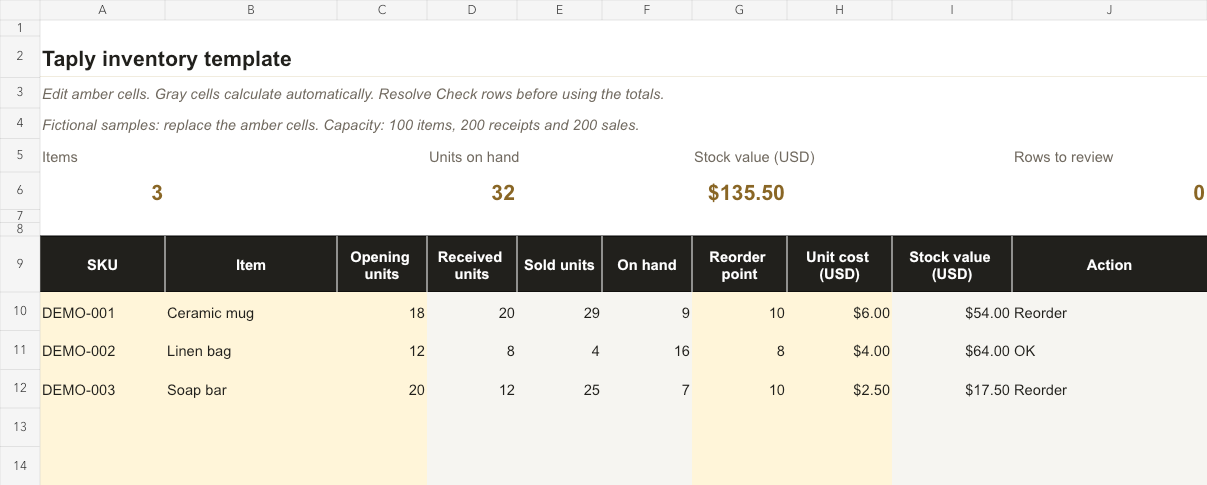
Open the .xlsx workbook in your spreadsheet app. Keep an untouched copy, then replace the amber sample cells across all three sheets.
Use a consistent, unique SKU for each item and enter a physical opening count. The template has room for 100 items, 200 purchase entries and 200 sales entries.
Log completed receipts and sales after the opening count, using whole units and unique entry IDs. “Check” messages identify entries that need attention before you use the totals.
On hand equals opening units plus received units minus sold units. Stock value uses your entered unit cost in USD. Reconcile the sheet with your physical count.
This is a manual workbook with prepared rows. It does not sync with your POS or calculate returns, write-offs, tax or accounting cost layers.
Prepare an editable supplier order with calculated totals.
Explore the templateCreate printable labels from your product codes.
Explore the toolCompare workflows, equipment and costs. Bring the right questions to your next POS demo.
Read the guideShowing 3 of 3 more resources for your store