Tickets with context
Keep items, modifiers and notes together.
Taply Kitchen Display System
Bring the counter and kitchen into the same conversation. Keep tickets, item choices and preparation status together through the rush.
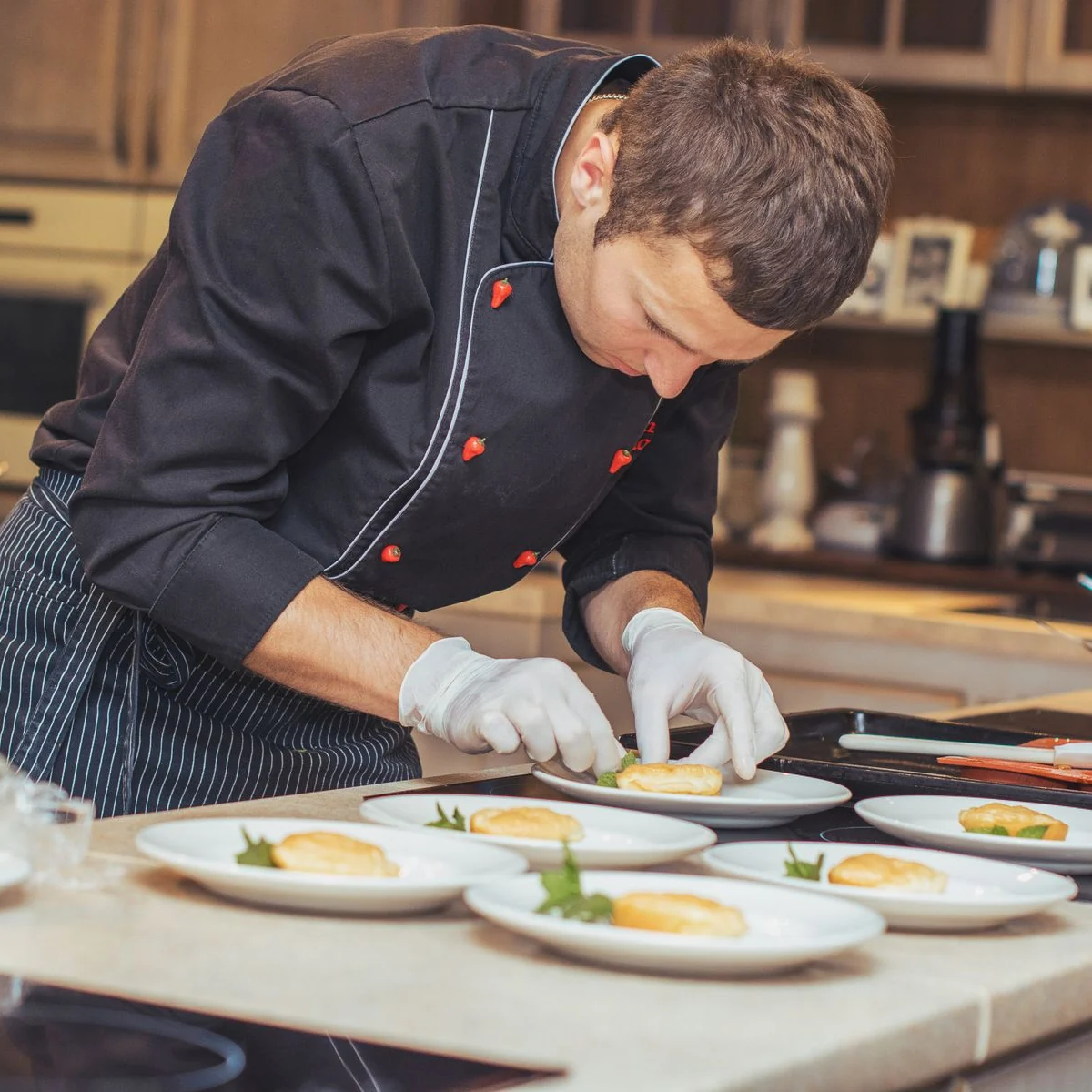
Ready for the welcome.
A dedicated kitchen workspace
Give the team a clear place to see what’s being prepared. Keep the table, item choices and notes close to the order they belong to.
A focused workspace for the people bringing every dish together.
Keep items, modifiers and notes together.
Focus each preparation area on its own work.
Review the order’s age alongside its status.
Choose compatible iPad or Android hardware.
From preparation to the pass
Choose a station, check off the sample dishes and move a ticket to ready.
Explore the sample tickets. Nothing is sent to a restaurant.
Front of house. Back of house.
The counter, floor and kitchen have different jobs. Give each team the view it needs, with the order details connecting the handover.
The order starts
with the guest.
The details arrive
with the dish.
The team sees
what’s ready.
Make it work for your restaurant
Bring your team, your menu and your service into the walkthrough.
Review your iPad or Android display, mounting and preparation stations.
Check coverage, device connections and the steps for an interrupted service.
Walk through a demonstration order and the responsibilities at each handover.
Included with Ultra and Enterprise. Review device allowances, hardware and setup in your Restaurant quote.
Compare plansTHE TAPLY APPS
Download the app for your device and connect it to your existing Taply setup.
For iPad & Android tablets
On iPad, use KDS inside the Taply Restaurant POS app. On Android, download the dedicated Taply KDS app.
Dedicated KDS requires Ultra or Enterprise and a compatible device.
Taply Restaurant
Give the kitchen a view made for the work it does.
Book a personal walkthroughA dedicated preparation workspace for tickets, item choices, notes and order status. Organize the kitchen around its workstations and keep the handover to the floor clear.
Use station routing to focus on the items a preparation area handles. Review the menu assignments and each device’s station configuration with your team before service.
Follow item preparation alongside the ticket. The example on this page lets you check off fictional dishes and move a sample ticket to Ready; it does not change a live order.
On iPad, KDS is available inside the Taply Restaurant POS app; use the App Store link in the downloads section. On Android, use the dedicated Taply KDS app from Google Play. Confirm the exact model, operating system, mounting and network needs for your setup.
Dedicated KDS is included with Ultra and Enterprise. Review device allowances and any hardware or installation costs with your Restaurant quote.
Check the network, device placement and the team’s fallback procedure during setup. Have the team recognize interrupted or stale updates and rehearse recovery before a busy service.
No. Plan the display, preparation printers and receipt printers together. Confirm where each item and order type should go, and rehearse that routing with demonstration orders.
The website example uses fixed fictional tickets and local page state. Its controls do not contact a restaurant, send an order, print a ticket or take a payment. Reload or use Reset example to start again.
Keep exploring