Plan the week
Organize shifts, roles and the people behind service.
Restaurant workforce & payroll
Bring the schedule, recorded time and pay review into the same story. Help the people behind every service start the week with a clear plan.

Organize shifts, roles and the people behind service.
Keep recorded time distinct from the planned schedule.
Review the inputs that belong to the pay period.
Give payroll review an organized handoff.
From time worked to pay review
Explore three parts of the review with a fictional team. Change the period to see how the inputs stay together.
Step 01
See each person’s recorded hours together. Check the period and resolve missing or unusual entries before moving on.
| Team member | Hours |
|---|---|
| CaseyFloor | 35 |
| RileyKitchen | 40 |
| MorganHost | 24 |
| Total | 99 |
99 recorded hours in this sample
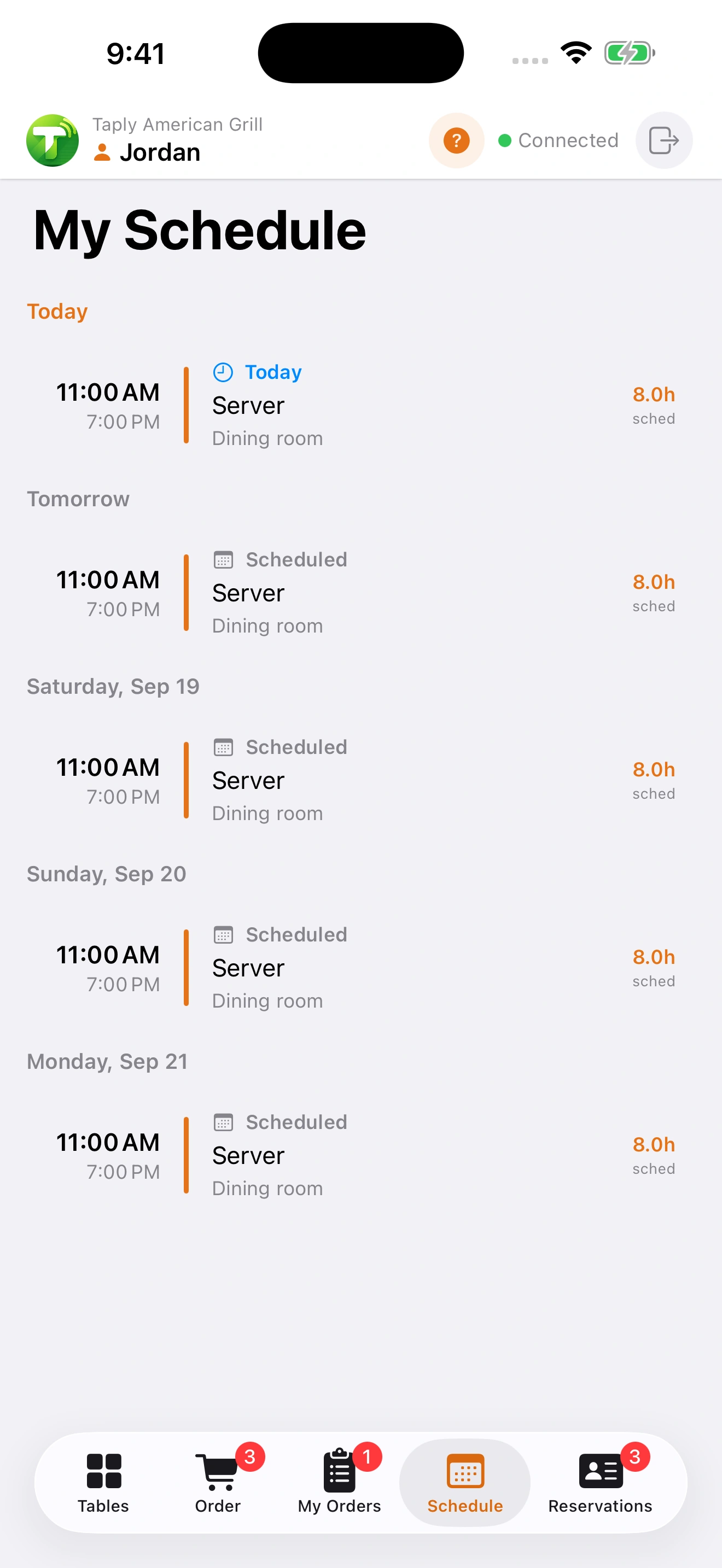 A clear start to the shift.
The week, in everyone’s hands
A schedule is more useful when the team can see the details. Bring the date, role, start time and end time into the Floor view.
Before the register leaves your desk
Payroll depends on complete records and the right settings. Keep the review deliberate, with the people responsible for pay involved from the start.
Payroll calculations require Ultra or Enterprise and enabled settings. Taply does not file payroll taxes.
Check the restaurant, dates and recorded time, including exceptions.
Review employee settings, earnings, tips, deductions and withholding.
Use the pay register with your accountant or agreed payroll process.
Keep exploring
Give the week a practical starting point.
Explore Labor planningBring roles and team routines together.
Explore Staff managementWrite down the expectations behind great service.
Explore Employee handbookOrganize the team schedule, review recorded time and bring earnings and POS tips into payroll review. Keep planned shifts, worked hours and payroll records distinct so each stage can be checked.
Taply Floor includes a schedule view for the service team. Review the assigned roles, dates, shift times and enabled device access in your Restaurant setup.
Start with the right period and employee records. Review worked time, overtime, earnings, recorded tips and the configured deductions and withholding before using the register in your payroll process.
No. Payroll calculations and register exports support your review workflow. Taply does not file payroll taxes; review the records and settings with the person responsible for payroll.
Payroll calculations require Ultra or Enterprise and must be enabled in the restaurant’s settings. Confirm the exact released workflow, employee setup and access in your demonstration.
No. It contains fixed fictional data and changes only the local page display. Marking the sample reviewed does not save a record, approve a real pay run or move funds.
Let’s talk Restaurant
Bring your questions. Explore your setup with Taply.
Talk to Taply