A dedicated Scanner companion
A focused mobile companion for product lookup, stockroom tasks and scanning away from the main register.
Barcode & camera lookup · Taply Retail
From a shelf label to the basket, keep the product in focus. Find catalog items with a compatible scanner, your device camera or a simple SKU search.
Barcode lookup within the Taply Retail register.
Find it. Check it. Add it.
Give the cashier more than one way to find the right item. Barcode input, SKU search and product categories all lead back to the catalog.
A camera. A code. A clear next step.
Open Find by Barcode, choose Scan with Camera and line up the label. On a supported device, the result helps you find the matching item in your Retail catalog.
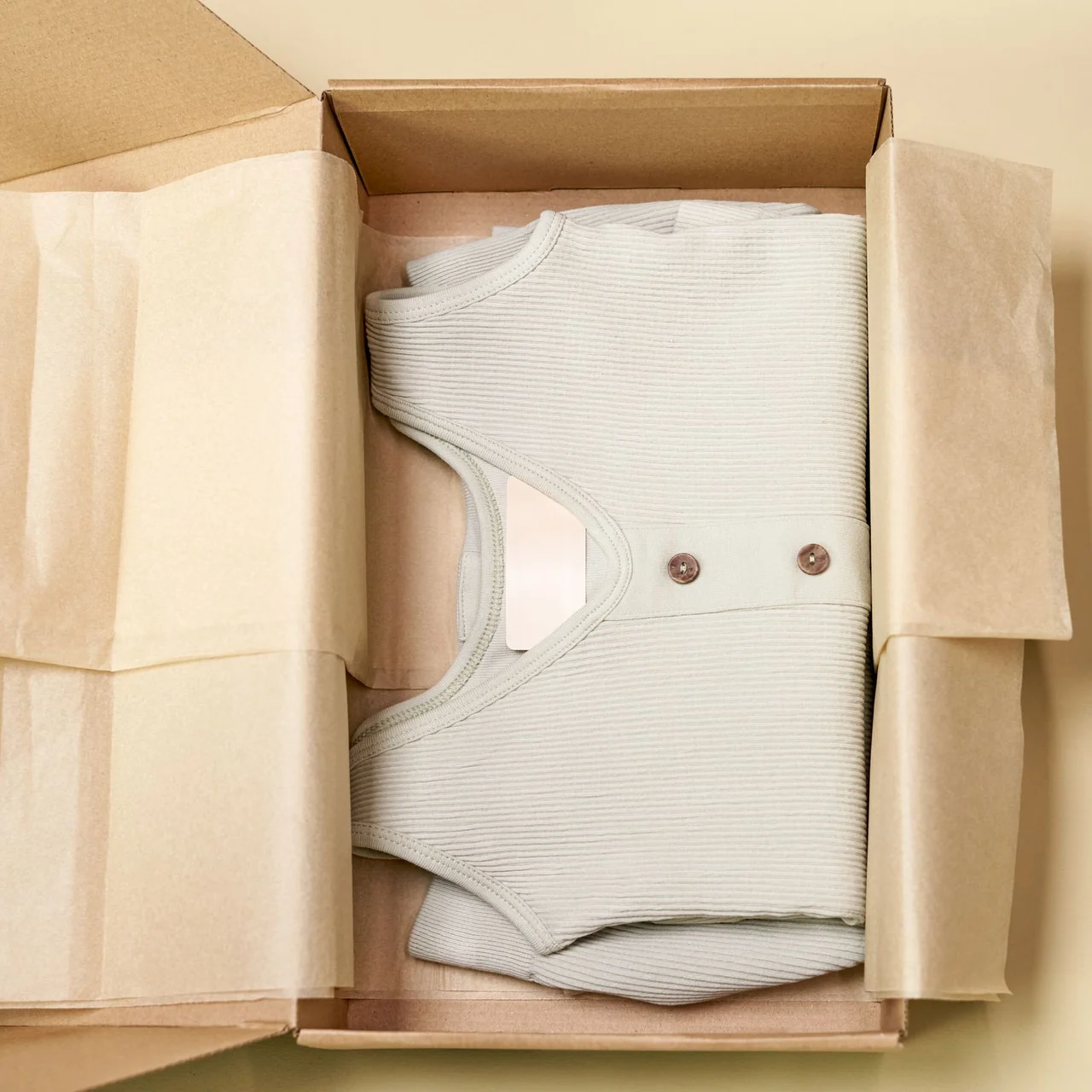
RIBBED COTTON TOP
Oat / MediumDEMO · TOP-OAT-MRIBBED COTTON TOP
Oat / MediumDEMO · TOP-OAT-MGood labels start with a clear catalog
A single item, a multipack and a case can look similar at a busy counter. Give each label the attention it needs before the first sale.
From the counter to the count
Use Retail’s stock-count workflow when it is time to check the shelves. Choose the count, search the item list and enter the quantities your team physically counts.
Stock counts use quantity entry. Barcode lookup at checkout is a separate flow.
Explore inventory & stock counts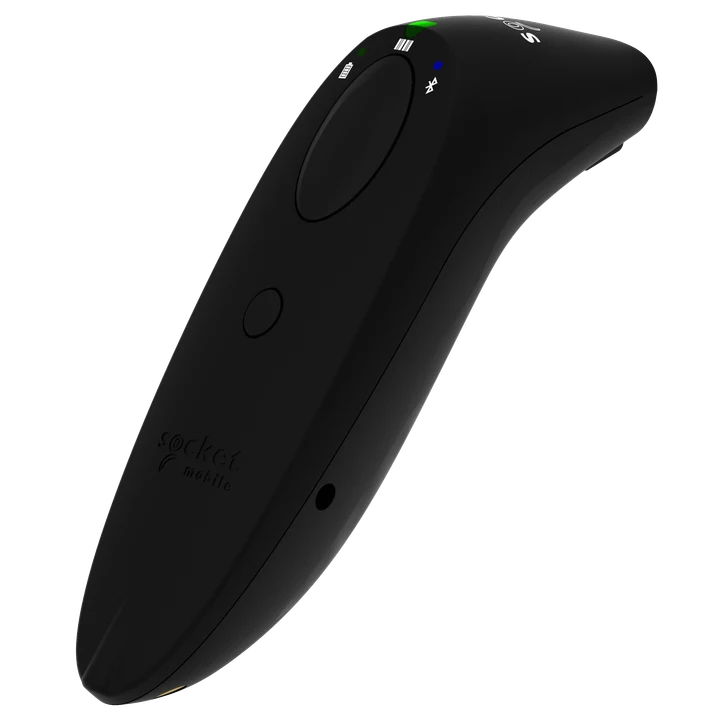 A setup that suits your counter
Choose the equipment with care
Bring your device and a few real product labels to the hardware review. We’ll help you work through the connection, scanner mode and day-to-day setup.
Taply Retail features
Explore tools for the stockroom, the counter and every handoff in between. Bring the features that matter to your business into your Retail walkthrough.
A focused mobile companion for product lookup, stockroom tasks and scanning away from the main register.
Scan a product label to find its count line, record quantities and review differences in the stock-count workflow.
Capture an invoice inside the app and turn it into editable draft lines for purchasing or receiving, with staff review before posting.
Scan arriving products against a purchase order, check units and quantities, and review shortages or unexpected items.
Follow an order’s pick list on mobile, check items by barcode and prepare the completed order for its next handoff.
Scan items into a transfer, track the dispatch and confirm receipt at the destination store.
Feature configuration, supported devices and plan availability are reviewed with your store setup.
Explore features for your store
A few labels, your equipment and the way you sell. Start with the details that matter to your store.
Request a Retail demoRequest a Retail walkthrough and bring examples of the products, labels and stockroom tasks you want to support. Confirm the mobile setup and feature availability with the team.
The Retail register includes a Find by Barcode action with a Scan with Camera option. On a supported device, allow camera access, align the product barcode and review the matched catalog item. Camera availability depends on your device and app setup.
The camera scanner supports UPC-A, UPC-E, EAN-8, EAN-13, Code 128, Code 39, ITF-14 and Data Matrix. Bring representative labels to the setup review: print quality, glare, code format and camera focus can affect recognition.
Taply Retail accepts barcode text from a compatible scanner configured as keyboard input. Confirm the model, connection, input mode and device combination before buying equipment. A photo of a scanner does not establish compatibility with every model.
The register reports that the product was not found. Search the catalog by name or SKU and have an authorized team member review the product’s barcode before continuing. An unrecognized code does not create a product automatically.
Yes. The Find by Barcode dialog accepts a typed barcode or SKU, and the register also offers product search and categories. These provide another route when a label is damaged or camera access is unavailable.
No. Product lookup belongs to building the basket. The cashier still reviews the items, quantities and amount, then uses the store’s configured checkout and payment flow.
Define the scope of the count, assign the team and check the product names, labels and units. The current stock-count screen lets staff search by item name or category and enter the quantity they physically count. Review the scanning setup you need during your walkthrough.
Review the barcode, product name and selling unit in the catalog. Test a single item, a multipack and a case during setup so your team knows which product each label identifies. Do not assume different package sizes use interchangeable codes.
The free Retail resources include a barcode-label generator and a stock-count checklist. Use them to prepare sample labels and a counting routine, then confirm your printer, label stock and equipment setup with Taply.
Barcode lookup and card acceptance are separate functions. Card acceptance needs an eligible device or supported payment reader and the appropriate merchant setup. Review payment equipment on the Retail checkout and hardware pages.
Have a different setup in mind? Talk it through with Taply