Specialty retail POS
Start with the right fit for your store.
Bring your catalog, staff responsibilities and selling requirements into one practical review. Define the supported setup before changing systems.
Choose a review area to explore a fictional store-fit checklist.Sample data. No sign-in needed.
Already with Taply? Log in
A STORE THAT WORKS TOGETHER
Make the important requirements explicit.
Product records
Review your identifiers, variations and sellable units.
ExploreStaff responsibilities
Agree access and daily operating procedures.
ExploreBusiness reporting
Keep product and location context with your sales review.
ExploreMerchant setup
Confirm business eligibility and requirements before enabling payments.
ExploreChoose a review area to explore a fictional store-fit checklist.
CLEAR REQUIREMENTS FIRST
Make the scope explicit.
Define the product records
- Representative product types
- Item identifiers and variations
- Receiving and sellable units
Illustrative review topics · not provider approval or verification
Define the scope first
Put your store's requirements on the table.
Start with representative catalog records and the way your team works. Make specialist selling requirements part of the product review, rather than assuming a general retail setup covers them.
- Review product identifiers, variations and units.
- Describe staff responsibilities and store procedures.
- Confirm eligibility and requirements with the relevant providers.
A clear daily routine
Agree what each role needs to do.
Bring operating procedures, staff access and customer interactions into the conversation. Confirm the supported controls in the proposed setup before choosing how the store will operate.
- List the responsibilities of each staff role.
- Review selling requirements and store procedures.
- Keep specialist verification requirements explicit.
Keep the business view useful
Review the products behind the numbers.
Use a consistent period to review sales and product performance. Keep store and inventory context alongside the totals in your regular business review.
- Review product and category performance.
- Compare consistent reporting periods.
- Keep location and stock context visible.
KEEP THE BIGGER PICTURE CONNECTED
Good connections.
One clear picture.
Bring accounting, payments and equipment into the conversation around your store. Explore each connection and the setup it needs.
Explore Retail connectionsClick an orbiting icon to learn more.
 Stripe payments
- Barcode scanners
- Receipt printers
 QuickBooks Online
- Retail API access
- Retail webhooks
- CSV report exports
A setup that has been reviewed
Confirm the path before enabling payments.
Discuss the business, products, geography and sales channels with the relevant providers. A retail software page or demo does not establish merchant approval or support for every product type.
- Confirm business and product eligibility.
- Review the exact payment and device setup.
- Agree the supported scope before rollout.
MADE FOR THE COUNTER
Give good service a great setup.
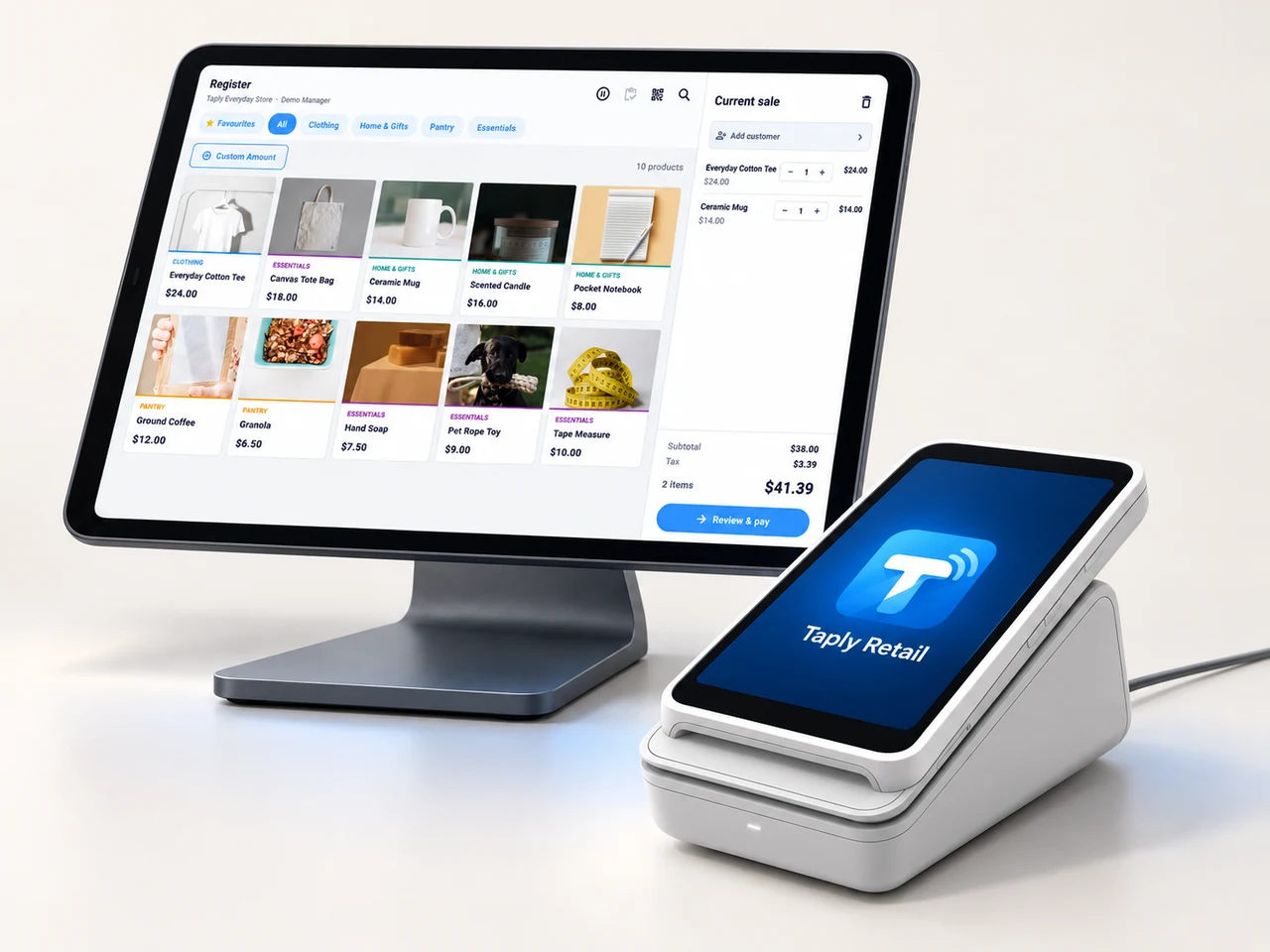
A landscape register, the right scanner and a receipt setup that fits your space. Build the counter around the way your team works.
- Review your existing equipment and connection methods.
- Confirm the reader and merchant setup before ordering.
- Keep hardware, software and payment costs itemized.
GOOD TOOLS START WITH GOOD QUESTIONS
A little preparation goes a long way.
FIELD NOTESBuyer's guide
Choose your next POS with a clear plan.
Open the resourceFIELD NOTESStock-count checklist
Give your next stock count a better start.
Open the resourceFIELD NOTESPurchase-order template
Put the next supplier order on paper.
Open the resourceFIELD NOTESMigration planning guide
Make the details part of your switch.
Open the resourceStart with a clear conversation about your store.
Walk through your products, your counter and your daily routines with Taply.
Questions about your specialty retail store POS.
Does this page confirm payment-processing eligibility?
No. Business and product eligibility must be confirmed with the relevant providers for your geography and sales channels before processing is enabled.
Does Taply automatically verify a customer's age?
This page and its checklist do not establish support for age or identity verification. Bring the exact required controls to a specific product and provider review.
Does the example create a sale or submit an application?
No. It displays fixed illustrative review topics only. It does not process a transaction, verify a customer or send an application.
What should I prepare for a walkthrough?
Bring representative product records, staff roles, sales channels, provider details and the controls your business requires. Agree the supported scope before choosing a rollout.