Take a sample order, look at the guest’s side of checkout and bring better questions to your walkthrough. The Restaurant page now gives you a closer look at the service journey.
Follow one service journey
A feature list can tell you what a system includes. A service journey helps you picture where each part belongs. The Taply Restaurant page brings the counter, guest checkout and card-tap scene together in three chapters you can explore at your own pace.
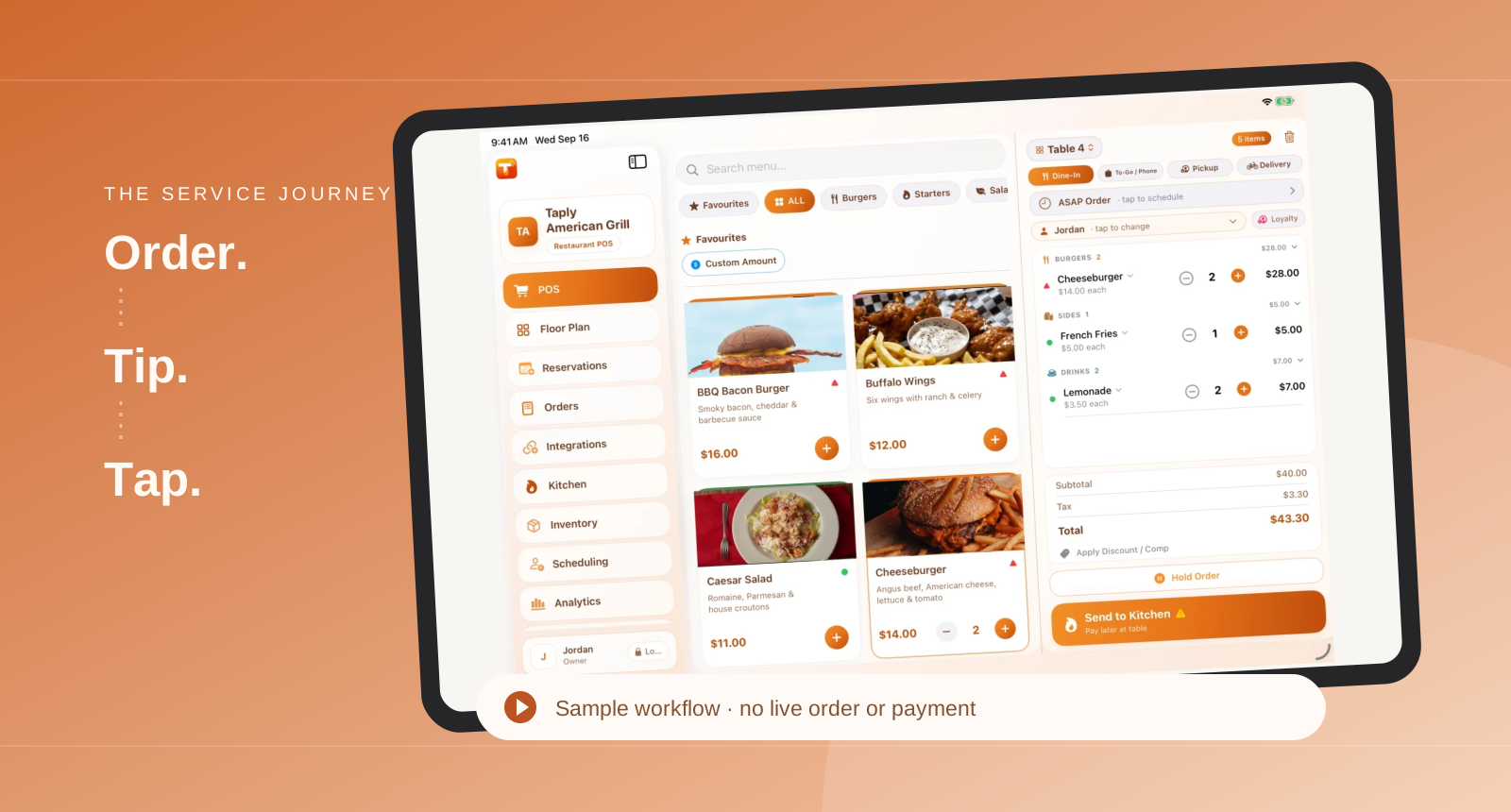
These are illustrative website examples, not a connection to a live restaurant. The sample order is not sent to a kitchen and the checkout example does not take a payment. That makes the walkthrough a useful place to start a conversation about your own menu and counter.
Begin at the counter
Choose Take an order, then Try it yourself. Look at how a landscape menu and the developing check share the screen. Think about the everyday details your team needs to see: product names, choices, order notes and the next step in service.
Bring one normal order and one awkward example to a personal demo. A coffee with a particular milk choice, a busy lunch combination or an order with several notes will tell you more about your workflow than a list of every button you might use someday.
- Pick an order your team handles every day.
- Note the choices or instructions that must reach the next person.
- Write down what you would want to see before confirming the check.
Look from the guest’s side
Move to Choose a tip & pay to explore the customer-facing example. Check whether the amount, tip choice and next action are easy to understand. Then view Tap the card for the final part of the illustrated journey.
Your own installation needs the same attention to physical details. Consider the display angle, the distance to the reader and how much counter space a guest has. Ask the Taply team to review the exact tablet, stand, reader and accessories you intend to use.
Connect the preview to your setup
The overview also brings payments, inventory, accounting, delivery, kitchen display, customer display, staff tools and tableside ordering into one feature gallery. Each card links to a fuller explanation, so you can move from the big picture to the requirements that matter for your restaurant.
Keep the website preview and your planned installation distinct. Dedicated KDS, some management tools and connected services have plan or activation requirements. Use the linked pages to prepare your questions, then confirm the software, devices and connections in a personal walkthrough.
Frequently asked questions
Does the website walkthrough place an order or charge a card?
No. It uses sample information to illustrate the service journey. No order is sent and no payment is taken.