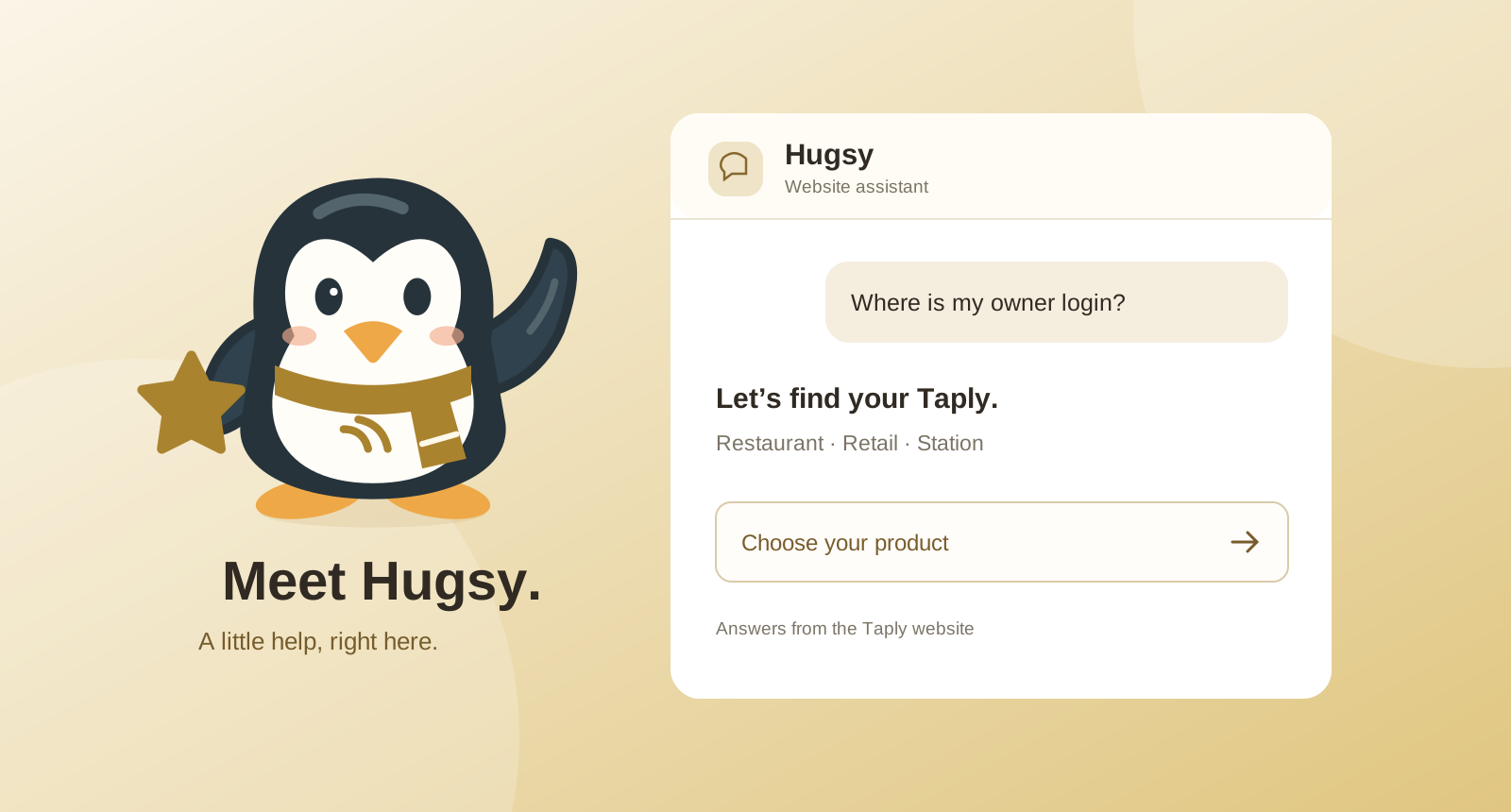
Find the right product, a published answer or your owner login without losing your place. Meet the small guide built into the Taply website.
A starting point, wherever you land
You might arrive at Taply through a restaurant checklist, a hardware page or a link from another business owner. Those are different starting points, and they often lead to the same practical questions: Which product is this? Where do I sign in? What should I look at next?
Hugsy puts those first steps in the corner of the website. Open the Hugsy button to ask a question, choose Restaurant, Retail or Station, or find the right help center. The character has its own little wave and happy dance, and stays still when your device’s reduced-motion setting is enabled.
Ask in your own words
Start with the product and the detail you need. A question such as “Where is the Station owner login?” gives Hugsy a clearer starting point than “login.” You can also ask about food trucks, published pricing information, compatible equipment or a resource you saw earlier.
Hugsy uses the information published on this website and offers links to the relevant pages. Follow those links for the full explanation, including plan requirements and setup details. If the website does not establish an answer, Hugsy points you toward further reading or the Taply team rather than confirming an unsupported feature.
- Choose your Taply product when a question could apply to more than one.
- Ask about one feature or task at a time.
- Open the suggested source page before making a setup decision.
Know when to contact the team
Hugsy is a website guide, not a person monitoring a live chat. It cannot inspect your account, change an order, issue a refund or diagnose the payment state of a specific transaction. For a problem in your business, use Contact support and explain which product and workflow need attention.
You can also start a demo inquiry from Hugsy. Choosing that option opens a form; a conversation alone does not book a meeting or send a support request. Review the details and submit the form when you want to send an inquiry. The form will show its submission status, and the team can follow up using the contact information you provide.
Keep sensitive details out of a question
Website questions and answers stay in the current browser tab. They are separate from contact information you deliberately submit through an inquiry form. There is no need to paste a password, full payment-card number or private customer record into a website question.
You can download the conversation when you want a copy for your own notes. If an unanswered question offers a separate ChatGPT link, that opens outside Taply and uses your own ChatGPT access. It does not give Hugsy access to your Taply account.
Frequently asked questions
Does asking Hugsy send a support ticket?
No. Asking a website question does not submit an inquiry. Use the Contact support form and review its submission status when you want to contact Taply.
Can Hugsy access my restaurant or store account?
No. Hugsy answers from public website information. Use the owner login for account access and contact Taply for an account-specific question.